
For campaigns that demand more room than a bifold or postcard can offer, Postalytics now introduces its largest and most versatile self-mailer format: The Direct Mail Tri-Fold Self Mailer.
This format is the perfect solution for marketers who need extended space without the cost and effort required for traditional letter packages. The Tri-Fold Self Mailer provides the largest canvas available in our self-mailer category, all while maintaining the simplicity, speed, and trackability you expect from Postalytics.
Why Choose the Tri-Fold Self Mailer?
The Tri-Fold format opens up six distinct panels for your content, making it a powerful choice when you need to convey detailed information or build a more involved narrative:
Deep Storytelling: Utilize the multiple folds to guide the reader through a detailed product launch, educational content, or complex offer sequences.
Data-Rich Campaigns: Ideal for necessary communication like annual policy updates, compliance forms, or extensive service menus.
Maximized Efficiency: This self-mailer bypasses the need for envelopes, allowing for streamlined printing and mailing, leading to faster deployment and lower costs per piece.
Format Details and Availability
Size (US):
Flat 17.75” x 9”
Final folded 6” x 9”
Current Availability: This format is currently available exclusively to our customers in the US.
Ready to Design?
Whether you are a design pro or starting from scratch, Postalytics has options for designing your Tri-fold template:
Choose a Pre-built Template within Postalytics to edit as desired
Use the Postalytics Direct Mail Editor. New Users: If you are unfamiliar with the editor, please review our comprehensive guide: Understanding the Postalytics Direct Mail Editor.
Design offline using Adobe® Design Tools
Design with the Postalytics + Canva Integration (in the very near future)
Template Design Specifications
No matter which option is used for designing the Tri-fold Self Mailer template, the template specs remain the same. The image below indicates the sizing requirements including the bleed and safe areas.
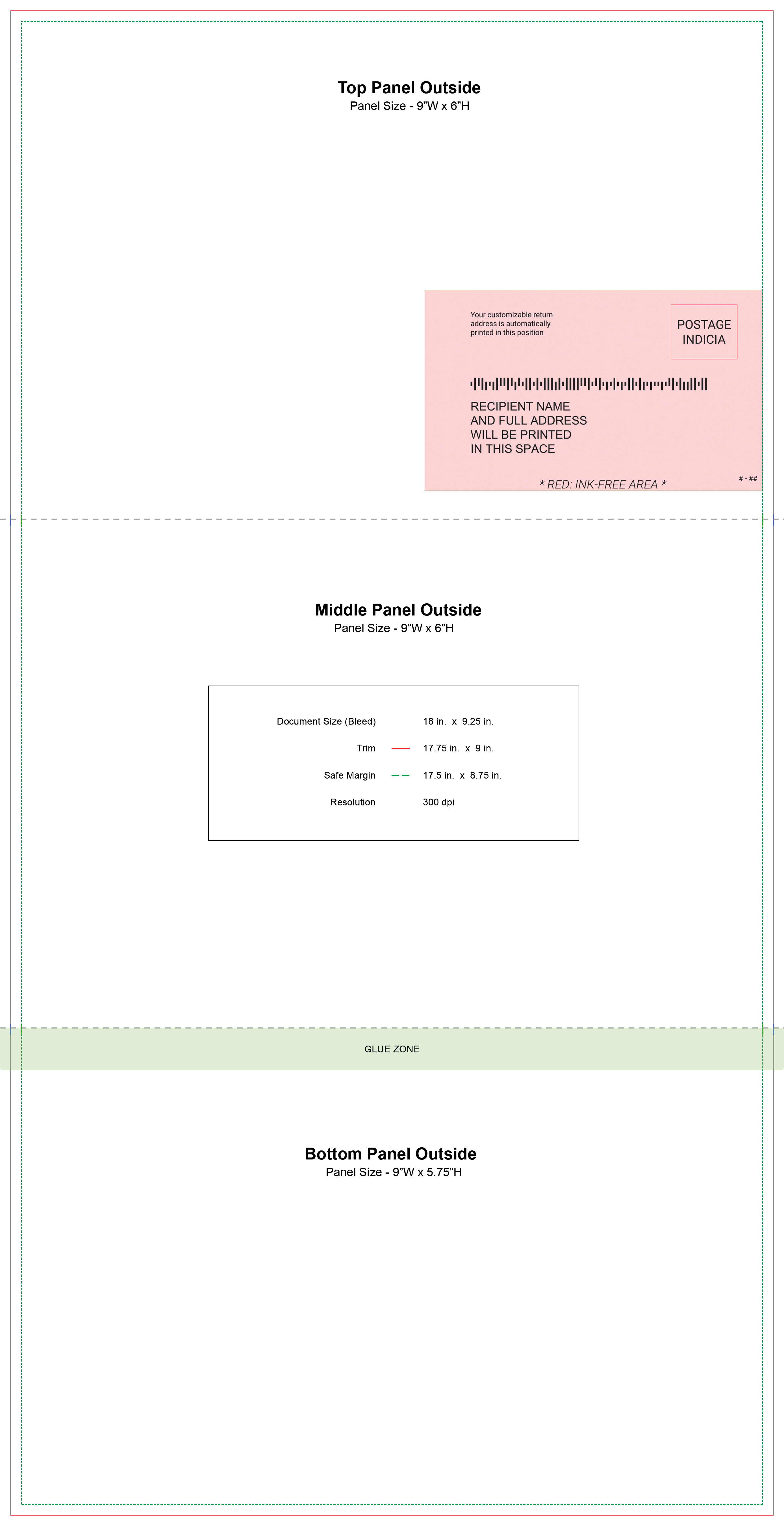
The steps below will walk through designing a Tri-fold template using the Postalytics Direct Mail Editor.
Getting Started: Creating Your Tri-Fold Template
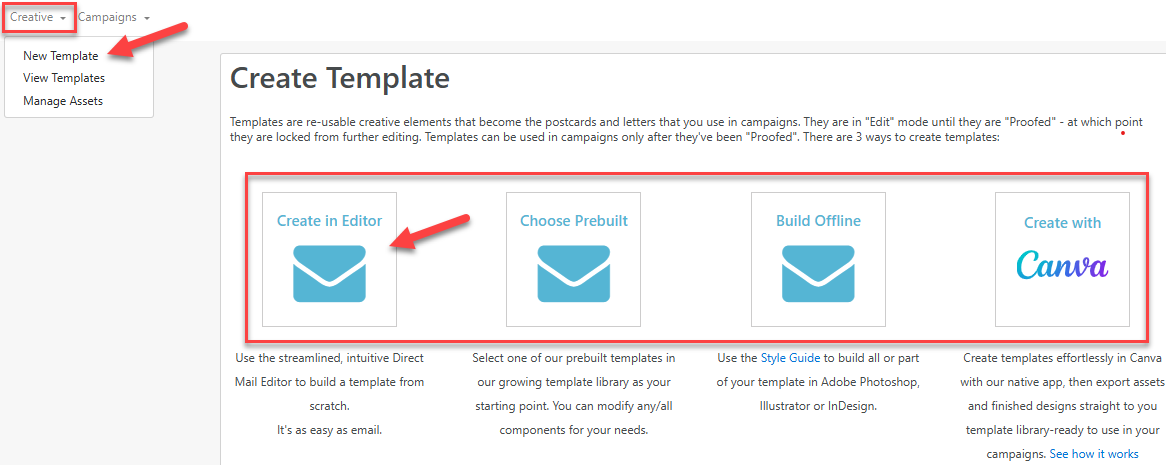
To begin designing a Tri-Fold Self Mailer template in The Editor, follow these steps from your Postalytics Home Page:
From the Creative drop-down menu, select 'New Template', and then 'Create in Editor' on the Create Template page.
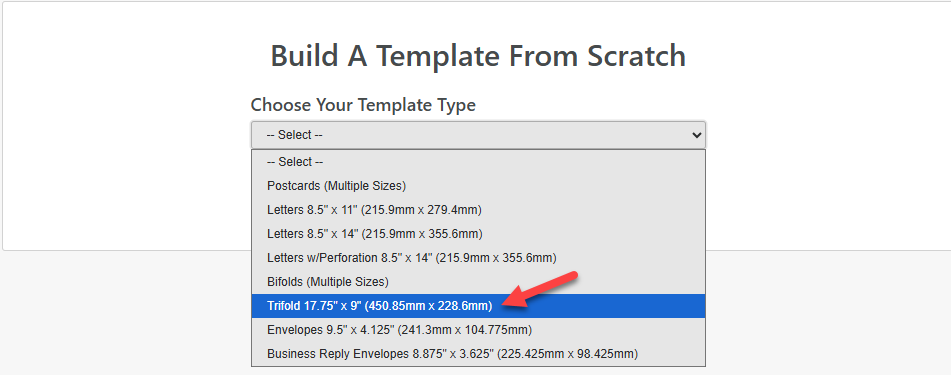
Choose Your Template Type from the drop down menu: 'Trifold 17.75 x 9', and then, ‘Start Editing’.
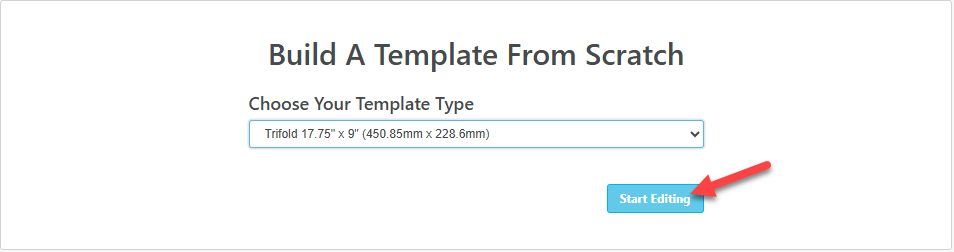
The template will populate in the Direct Mail Editor.
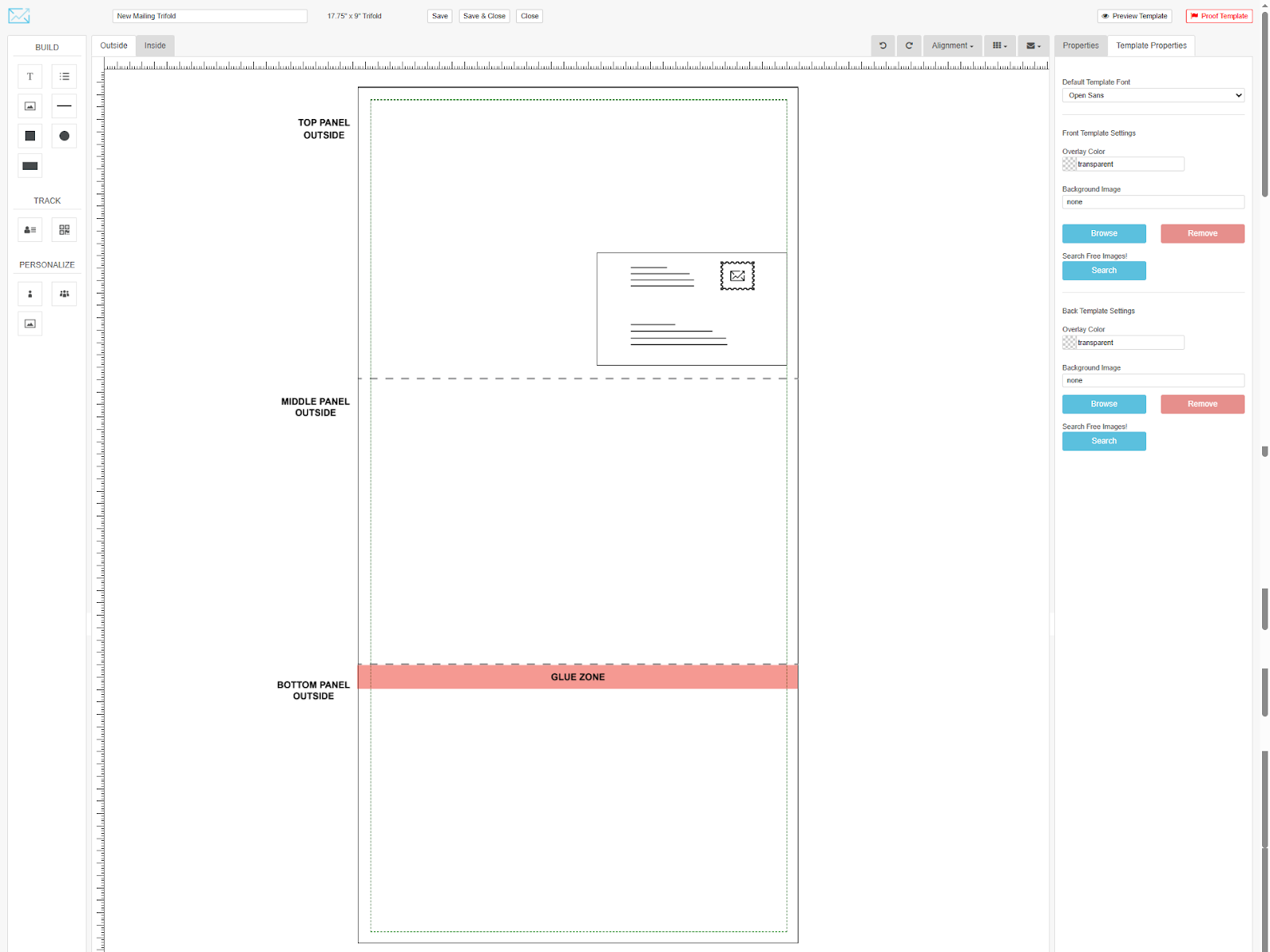
Name and save the template in the top section before moving on.
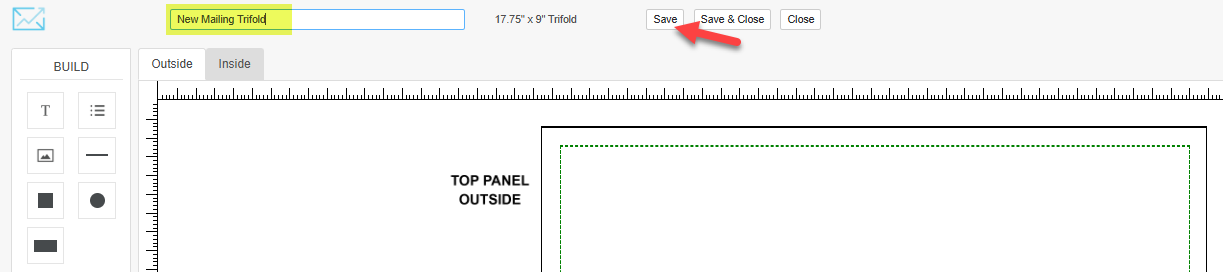
The Editor marks the safe area and bleed area within the template. Keep the following in mind:
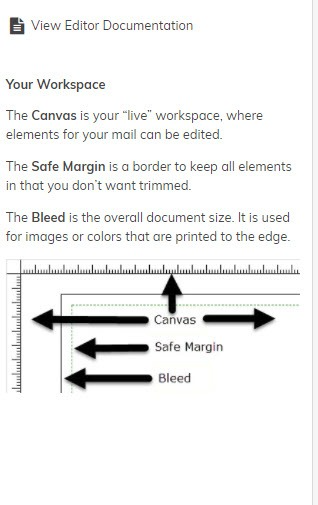
Designing the Tri-fold Self Mailer
The Outside
The Editor will start with the design canvas for the outside of the Tri-fold self mailer and each panel section can be designed individually.
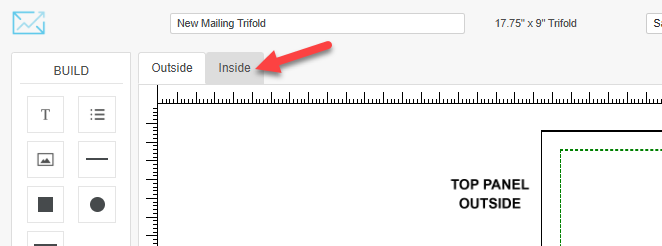
If you’d prefer to start with the inside, click the tab “Inside” at the top.
The top outside panel includes the return address, recipient address and postage area.
You can hide this area so that it isn’t seen in the template, however, you won’t want to have any design elements in this area as it will be whited out for the printer to add the addressing information at print. Design elements can be added anywhere else on this panel.
To hide the postage area, click the ‘Hide/Show Postage’ box as shown below.
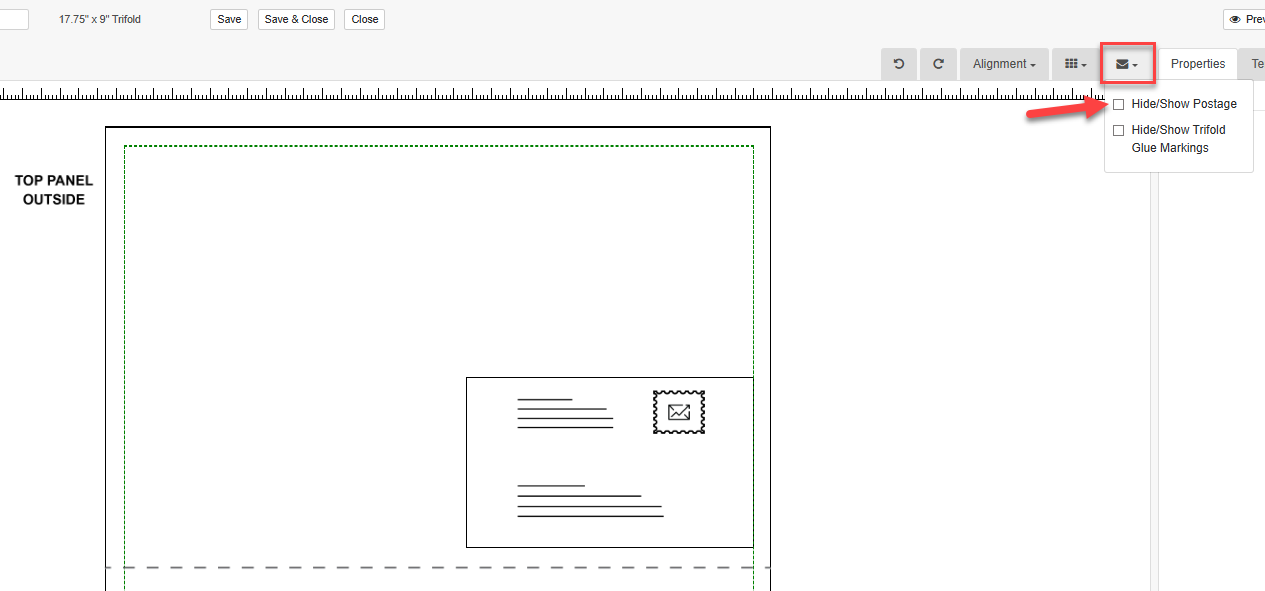
In both the Outside and Inside canvas areas you’ll also see the fold lines, as dotted lines on the template, as well as the Glue Zone on the outside only.
These can also be hidden by clicking ‘Hide/Show Fold and Glue Markings.
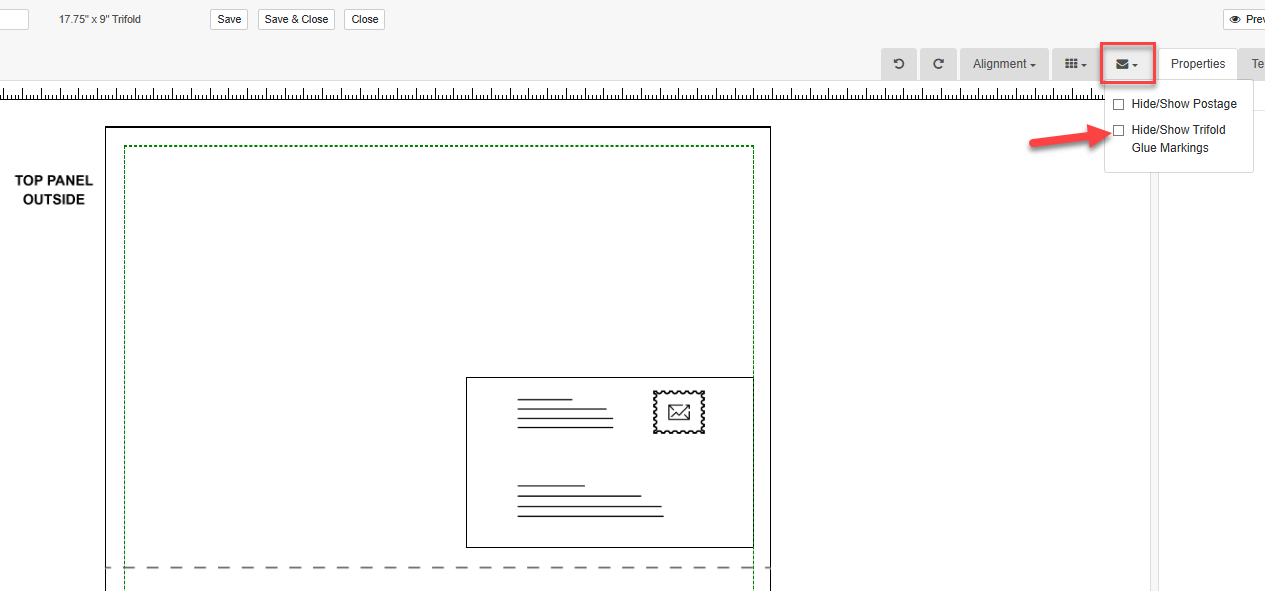
**Important note about the Fold Marks”: there can be a variance of up to 1/16” due to shifting during print and trim. Allowing for that variance within the design is recommended.
**Important note about the "Glue Zone": Your design can be included in this area, but avoid placing any pertinent design elements or copy in this area as the adhesive can blur or tear apart as it's being opened by the recipient.
Images
Leverage existing assets from your Postalytics Asset Manager, or take advantage of the vast resources available in the Postalytics Free Image Database.
To search the database for a free image:
Click on the image icon in the Build section and drag it over to your canvas.
Click on the image icon in the canvas.
On the right side of the canvas you’ll see the Template Properties panel tab.
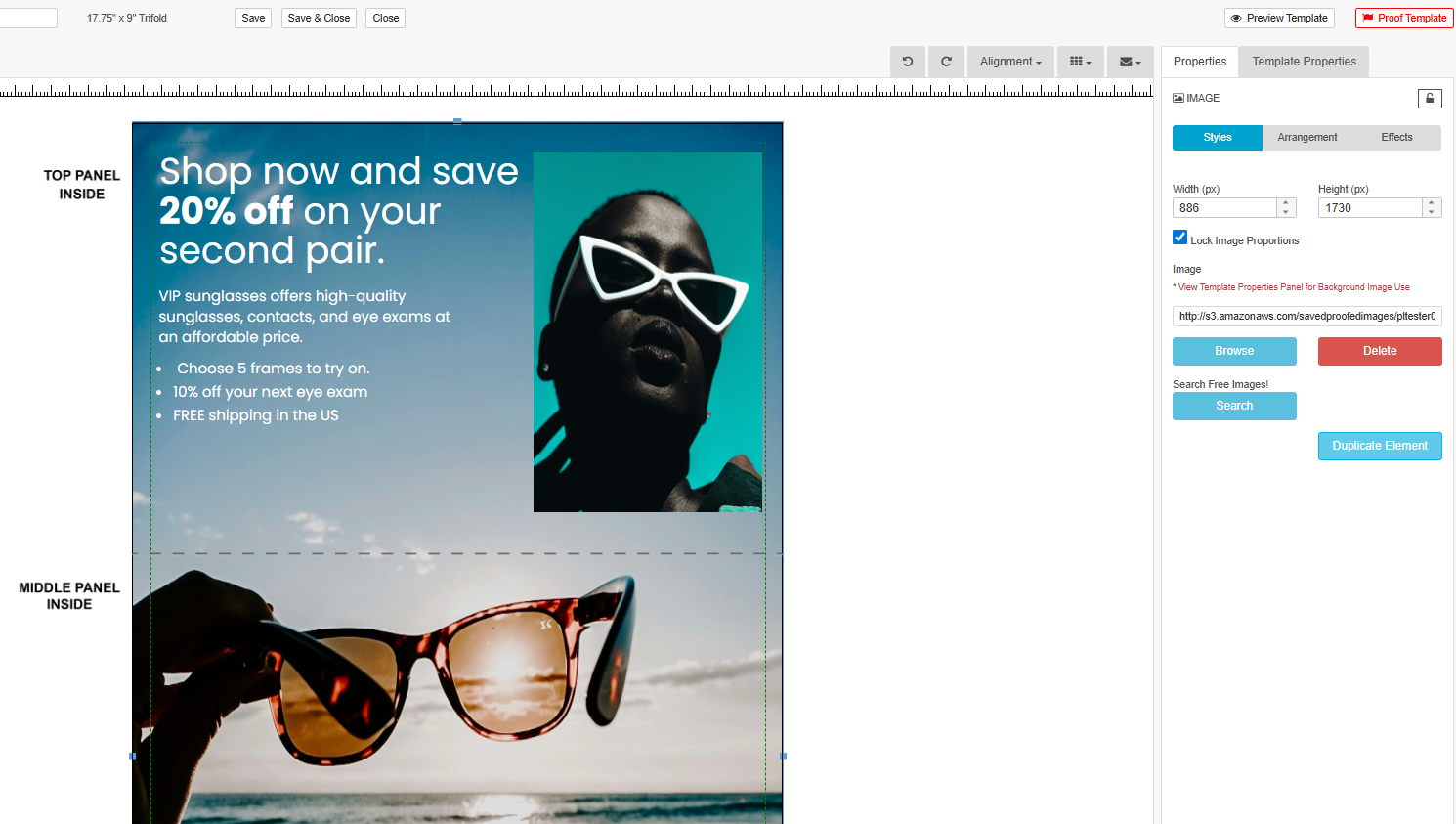
Under Front Template Settings, click 'Search' to browse the free image database.
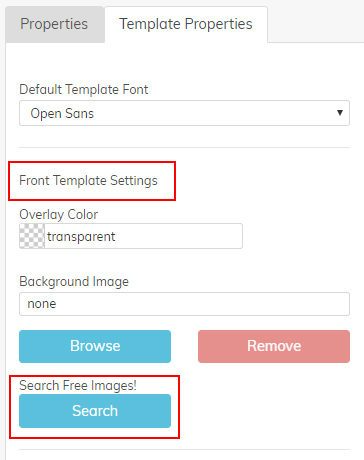
Once in the database, use the Keyword search feature to search for images that relate to your design.
In this example “sunglasses” is the keyword used. The resulting images to select from have at least the minimum size requirements for use within the design.
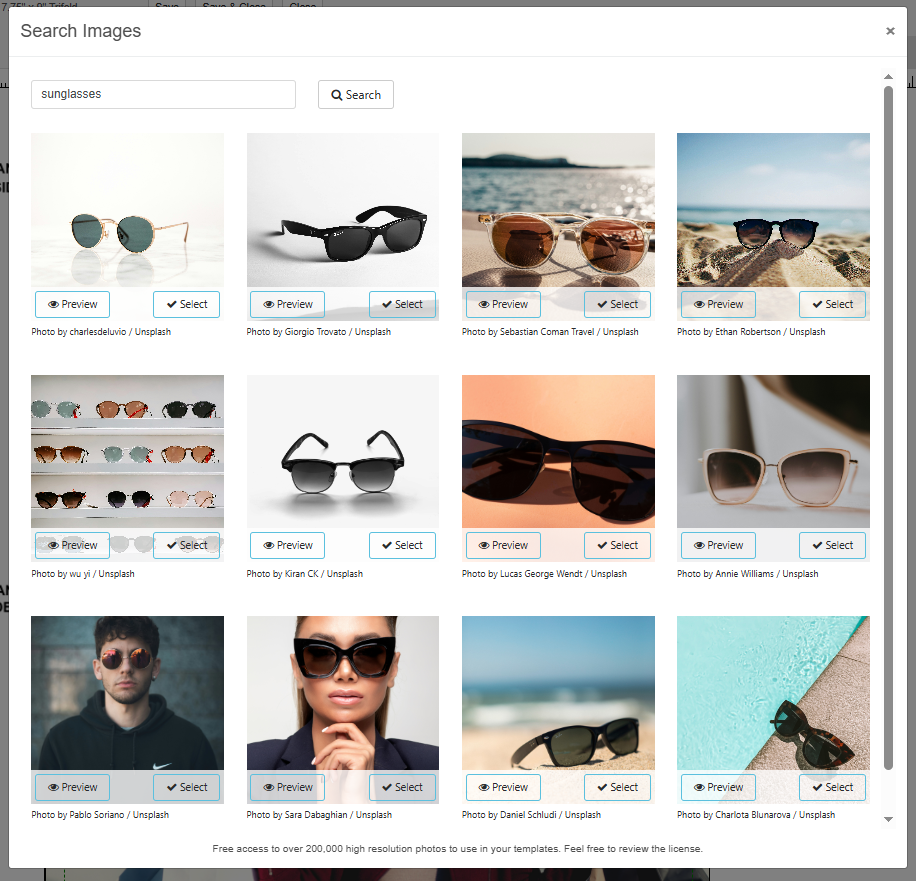
Preview and then Select the image you’d like to use and it will populate onto the canvas in the image area you placed.
To use an image or design in the Asset Manager
Instead of searching for free images:
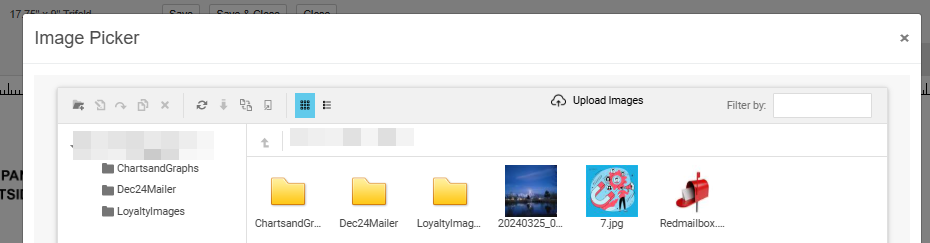
Select 'Browse', just above the Search Free Images! button.
Choose the image or file within the Asset Manager.
Background images
Background images are images that will populate the entire area of the front or back of the mailpiece. These images can be your own, or free images from our database, that have been uploaded/saved into the Asset Manager,
The difference is that you won’t drag the image icon over to the canvas.
Simply double click in the blank canvas area to open up the Asset Manager.
Select the image or file to use as the background image.
Recommended Background Image Size
To ensure highest background image print quality, we recommend downloading and cropping images to the following size for the Tri-fold Self Mailer:
The Inside
The inside is the prime real estate for your core marketing elements:
Message
Offer
Call-to-action (CTA)
This is also the best place to use personalization to make your content pop for every recipient.
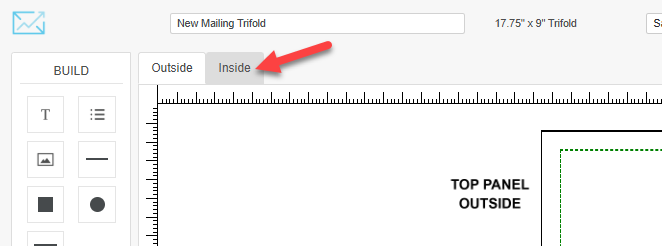
Click the 'Inside' tab at the top of the canvas to view and edit the interior of the mailer.
If you have images to add, use the same steps as above to use the Asset Manager or the free image library.
**Important note for the Tri-fold: during production, it is flipped on the long side, meaning the inside is flipped upside down so that it presents "heads up" when opened.
Helpful Element Design Tips:
Add shapes and color by using the left Build panel to drag and drop the elements onto the canvas. You can increase the width and height by double clicking the element and dragging the small blue positioning boxes up and down.
Use the Properties and Styles panel to raise or lower the transparency under the Color option.
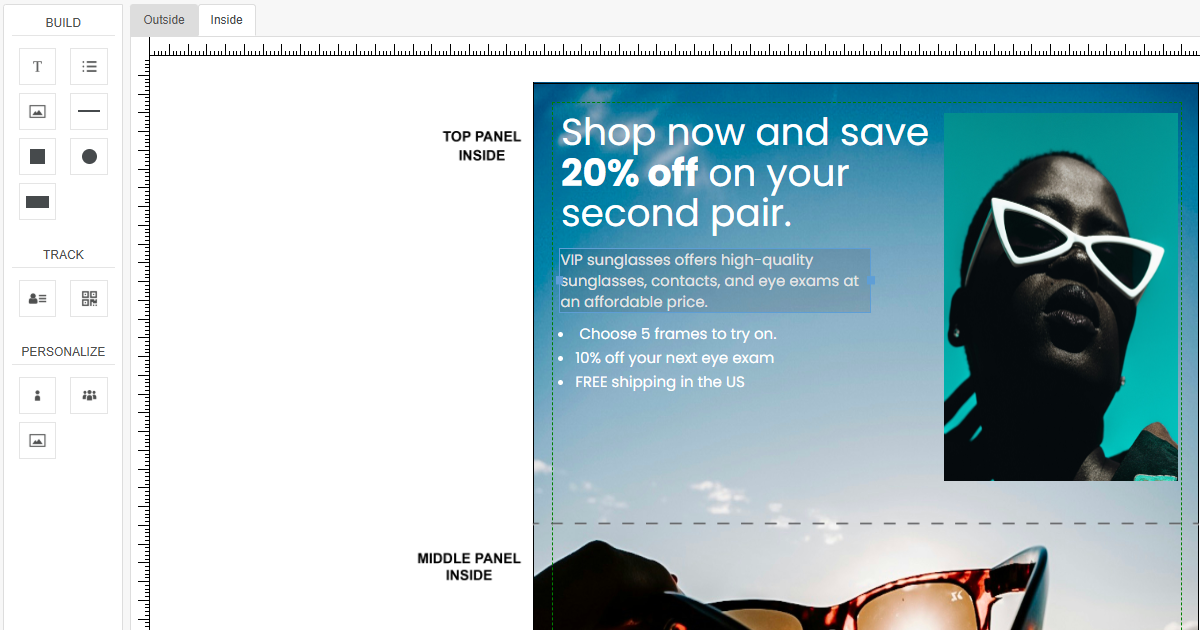
Add text boxes by dragging the T icon from the left Build panel to the canvas and use the right panel (Properties and Styles tab) to change the font style, the color, and the font sizes.
Drag the horizontal line icon from the left Build panel to the canvas and change the color to white with the Properties and Styles panel.
Adjust the width by double clicking the element and dragging the small blue boxes that appear, to the left and right.
Adding Personalization
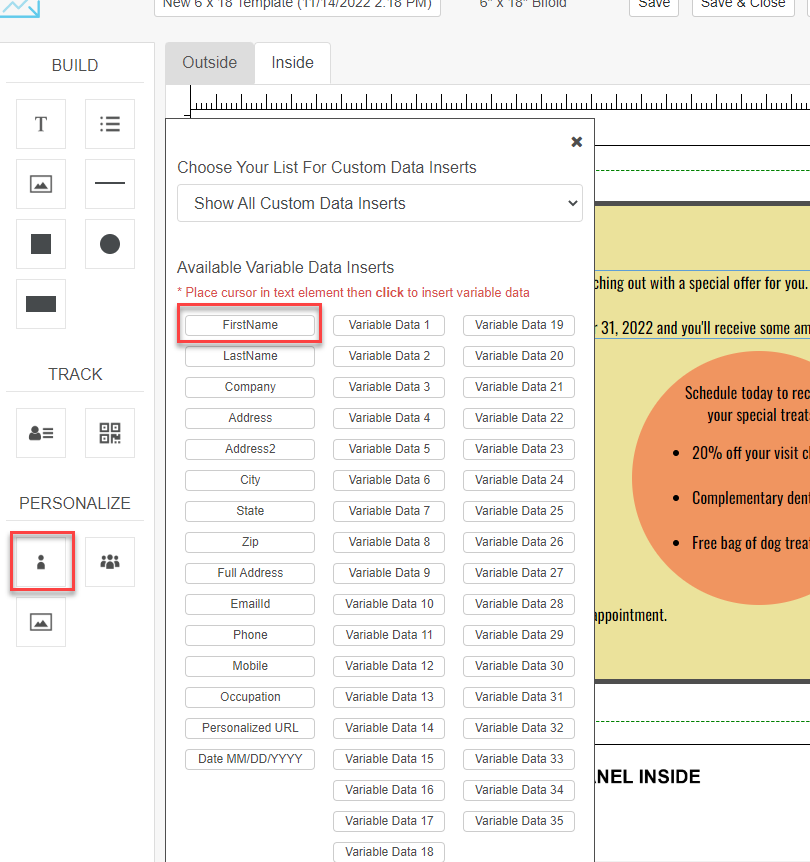
To add Variable Data, drag the T icon to the canvas, double click the element, then click the Variable Data icon in the left Personalize panel.
A pop-up window will appear with a drop menu to Choose the Variable Data field you want to use.
Other personalization options include:
Add pURL and/or QR Code
The pURL will be at the top of the canvas and can be placed wherever you’d like it within the canvas. The QR code can also be placed and resized using the blue border surrounding the QR image.
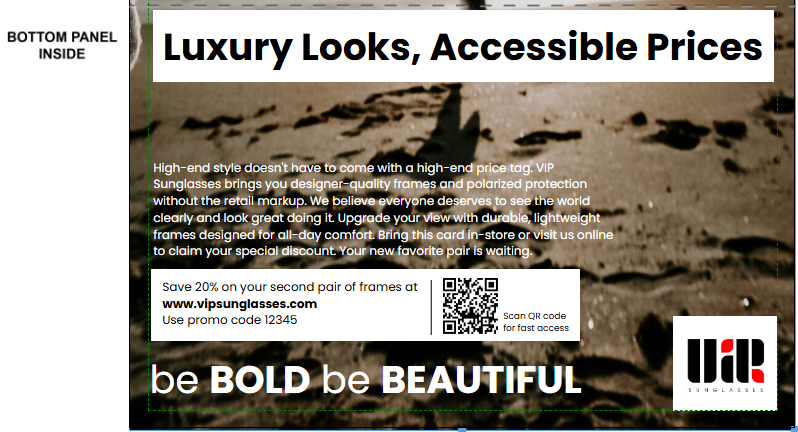
The pURL and QR Code that you set up in the template is a “variable” or placeholder. It will ultimately point recipients to a pURL that is generated when your campaign is completed. When you set up a campaign that uses a template with a pURL or QR Code, you’ll be asked to define a pURL structure, as well as the landing page that you want the recipient to access when they scan your QR.
** Important Note about Variables and pURLs: Each will have different character lengths. It is very important to map out an appropriate amount of space in the design to accommodate the longest First Names, pURLs or other types of variable data used.
Proofing Your Template
Once you are satisfied with your design and are ready to create your campaign, you’ll need to proof the template. This step cannot be missed or the template won’t be available to select during the campaign creation process.
Below are the steps for proofing the template. To learn more about the Postalytics Proofer, see our help article The Proofer – Generate A Direct Mail Template Proof.
In the top right corner, click “Proof Template”, shown in red.

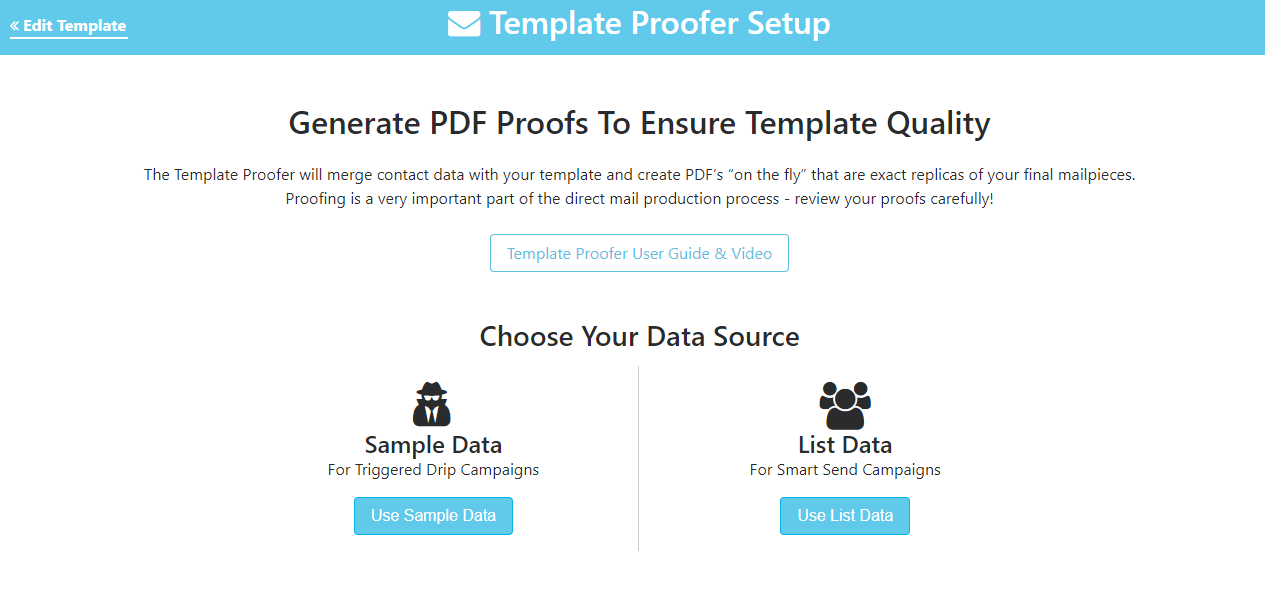
Next, on the Template Proofer Setup page, select the data source to populate the variable fields within the template. The choices are:
Sample Data - a sample data set that includes a lengthy name and address
Your Data from a previously uploaded file
Set up the return address. Postalytics automatically defaults to the return address in the account profile, but this can be edited.
If you’ve included a pURL or QR Code, you’ll next set up the online audience tracking. ** Note that these will not be live and are for proofing purposes only. You will need to complete these steps again when you are creating your campaign.
To set up the online audience tracking, you will:
Choose your Domain
Pick A Style
Choose a URL Ending
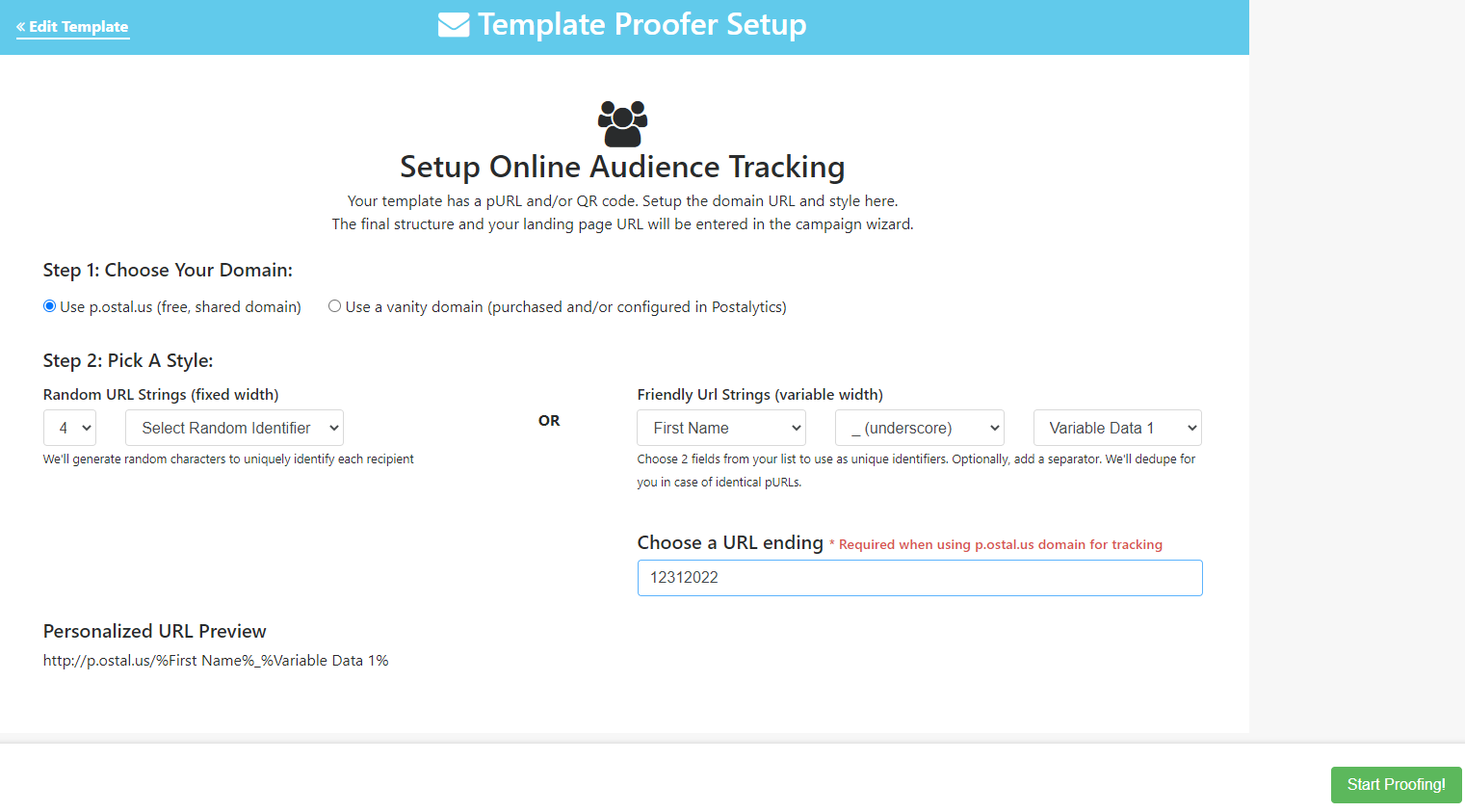
Click 'Start Proofing'. The editor is now preparing your proofs for viewing.
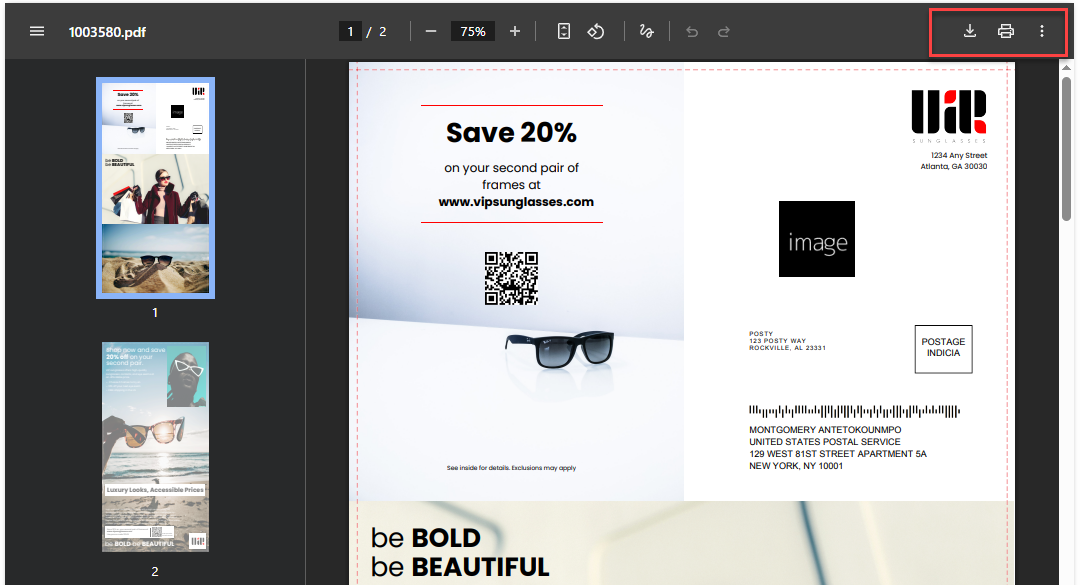
When the high-resolution PDF proofs are complete, review your entire mailpiece—including all design assets, data, and variable fields.
Use the Proofer to toggle through proofs featuring the most challenging variables (like long addresses) to guarantee layout integrity. It is extremely important to review how the variable data populates within your proofs.
You have the option to download and print the proof for additional review.
Keep in mind that the proof image includes crop marks, which designate the final trim lines of the mailpiece.
Steps to Complete Proofing
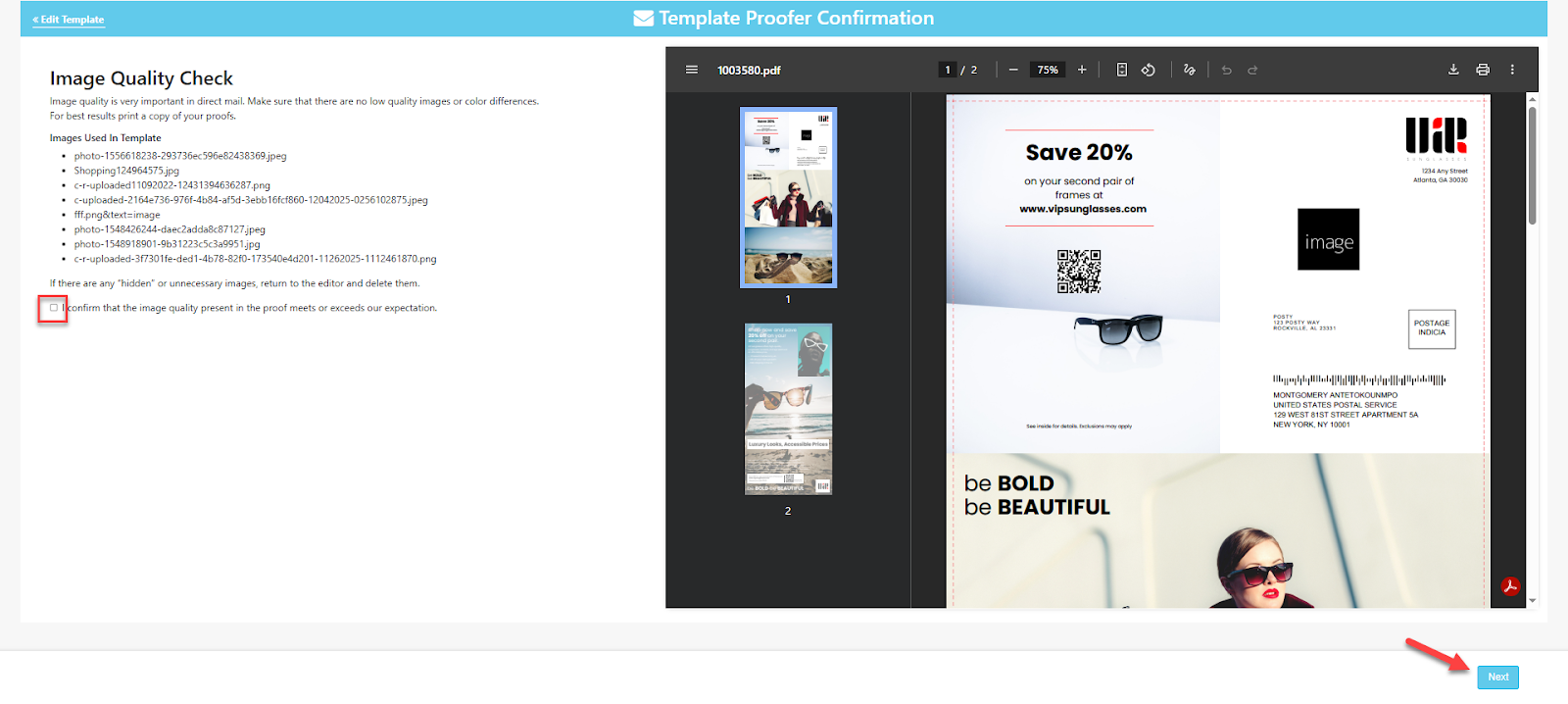
On the left side of the proofer, there is a series of specific items for review and confirmation.
In order to move onto the next item, the confirmation box must be checked at the bottom.
Once the review and box has been checked, click “Next” to move to the next screen.
Finalizing the Proof for Use in a Campaign
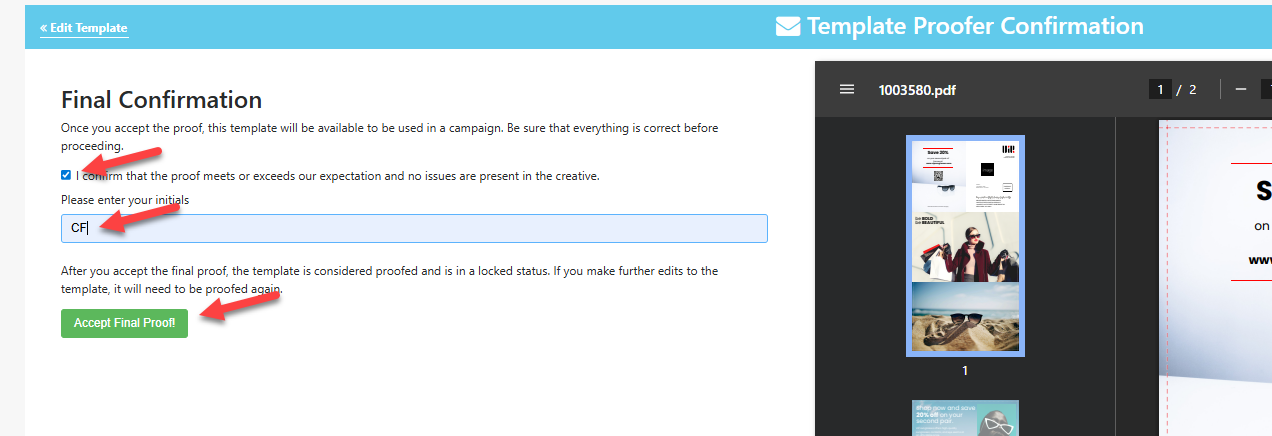
When the proof is ready to be finalized:
Click the last check box
Add your initials
Click the green box 'Accept Final Proof!'
Your proofed template will then show a green check mark in the Proofed column within your template library and can now be used within the Campaign Wizard when you are building a Postalytics Smart Send, Triggered Drip, or Automated File Campaign.
Need Help?
If you have any questions about connecting or disconnecting the apps, template sizing, exporting, or launching your first campaign, we are here to help. Visit the Postalytics Support Center or Contact Our Support Team.