
The new Postalytics Figma Integration simplifies the bridge between digital design and professional direct mail by bringing our mailer templates directly into your Figma workspace.
The goal of this integration is simple: Eliminate the guesswork. Instead of manually setting up canvases and worrying about print specifications, you can use the Postalytics plugin to generate "press-ready" creative templates. Once your design is complete, you’ll have a formatted asset ready to be uploaded into the Postalytics app for automated mailing.
The Workflow at a Glance
- Launch: Utilize the Postalytics plugin within the Figma application.
- Generate: Choose your mailer format to instantly create a frame with the correct dimensions and bleed zones.
- Design: Use Figma’s powerful tools to create your creative within our pre-set guides.
- Sync to Postalytics: Finalize your design and upload to the Postalytics app via the plugin.
- Proof in Postalytics: Make any final edits and proof the template in Postalytics to use in your campaign.
Why Use the Postalytics Plugin for Your Designs?
- Insert Variable Data fields from Postalytics while working in Figma. The Figma integration is a “plugin” for Figma that enables Postalytics to incorporate more features into the Figma design interface than other design tools allow. By incorporating Postalytics Variable Data elements directly in Figma, designers are able to greatly simplify the process of layering personalization into their direct mail templates.
- Native Dimensions & Specifications: Skip the "Specs" page. The plugin instantly creates Figma frames with the exact width, height, and 0.125" bleed required for our high-speed presses.
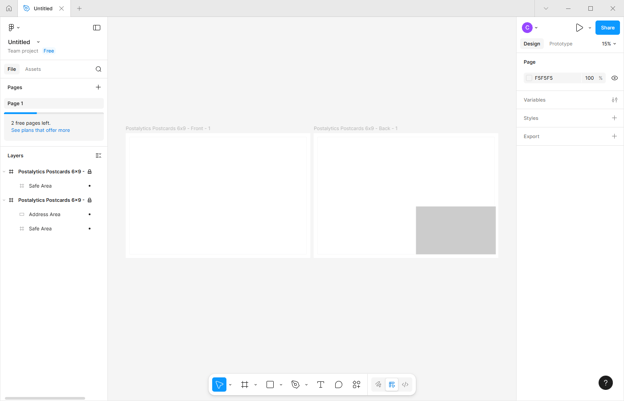
- Visual Guardrails: Every template includes non-printing guides for Safe Zones and Postal Clearing Areas. You’ll know exactly where it is safe to design and where the postage and barcodes will live.
- Reduced Upload Friction: By starting with our official templates, you ensure your file resolution and aspect ratios are optimized, eliminating the common formatting errors that occur during the manual upload process.
- Creative Freedom, Technical Certainty: Work in the Figma environment you’re comfortable with while maintaining a direct connection to Postalytics’ technical standards.
Getting Started with the Postalytics Plugin
To start, find the Postalytics plugin within the Figma application. This links your workspace to our template library.
1. Find and Select the Postalytics Plugin
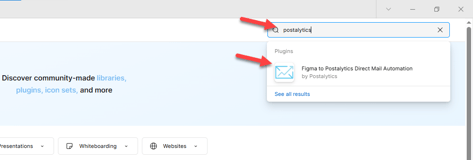
- From the Figma home page, go to the Community tab in the upper right and search for "Postalytics." Click the Postalytics Plugin.
- Click the blue “Open in…” button and select “New File”.
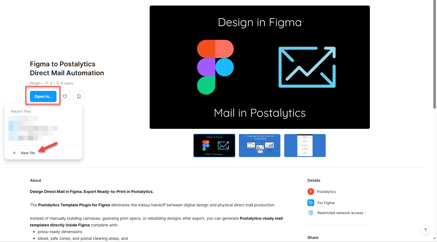
The Plugin will open and contains a summary of the plugin capabilities for your review.
- Click “Run” when you are ready to proceed.
2. Authenticate Your Account
Because the plugin pulls specific template data associated with your account, you must link it to your Postalytics profile:
- A secure window will open. Log in with your Postalytics credentials.
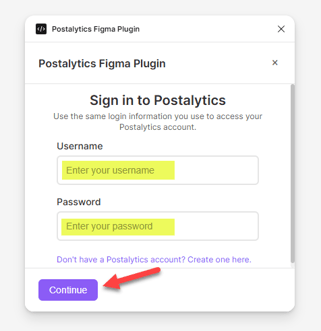
- Once the authentication is successful, the Postalytics Plugin menu will be available.
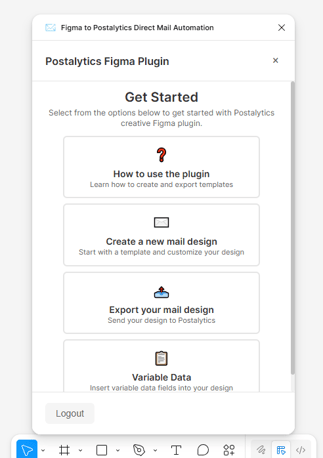
Create the Template Utilizing the Plugin
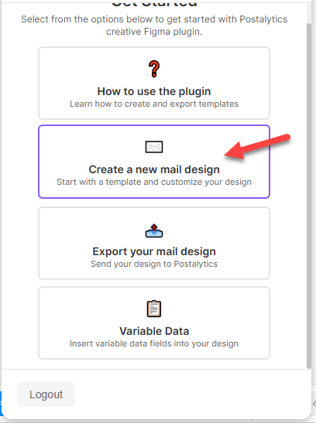
- Click “Create a new mail design”.
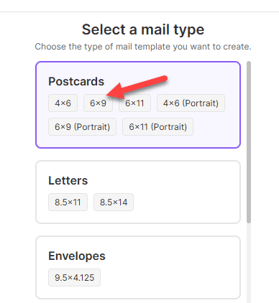
- Select the template mail type by double clicking on the desired template size. Use the scroll bar on the right to view all of the template choices.
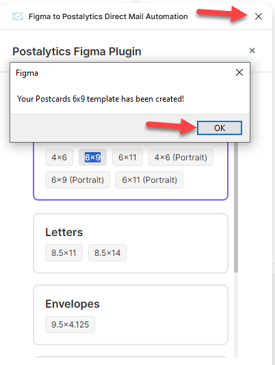
The template will populate in the Figma design canvas area.
- Click “OK” in the Figma message box and close the template selection window to access the template.
- Design the template as desired, noting the postage area and safe areas marked on the template.
Variable Data
Personalizing direct mail with variable data gives the recipient the feel of a one-on-one conversation rather than a generic sales pitch, instantly making the content more relevant. By using details that matter to them, you grab their attention faster and build the kind of genuine connection that actually gets results.
How to Add Variable Data Fields in Figma
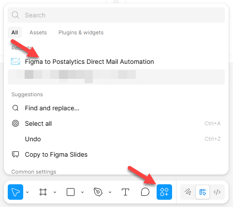
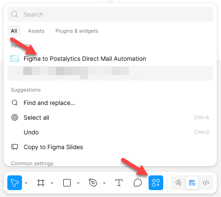
- Click the Plugin menu at the bottom of the screen. Click on “Postalytics Figma Plugin”.
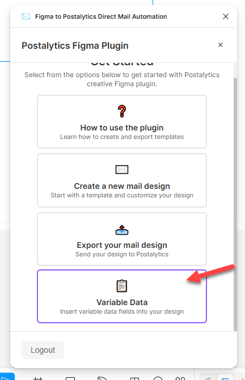
- Select “Variable Data”.
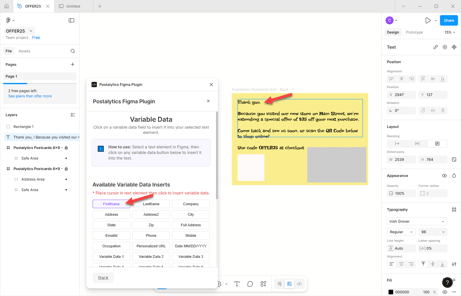
- Place the cursor in the text element where the variable will be inserted and select the variable data field.
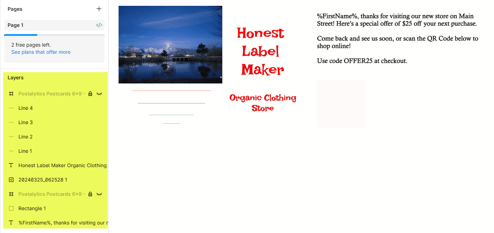
** It’s important to note that all text, images, or other design elements must be built as layers within the Postalytics template.
Sync to Postalytics
The Postalytics plugin features a direct integration that packages your Figma frames and pushes them directly into your Postalytics account.
Final Design Check
Since you are designing for a physical product, ensure your frames are ready for the press:
- Bleed Coverage: Confirm background colors and images extend to the very edge of the Bleed guide.
- Postal Clearing: Verify that no critical text or graphics are hidden beneath the Postage or Address zones.
Export Your Design
With the creative template finalized, you’re ready to send it to Postalytics - without leaving the Figma Desktop app:
- Open the Postalytics Plugin.
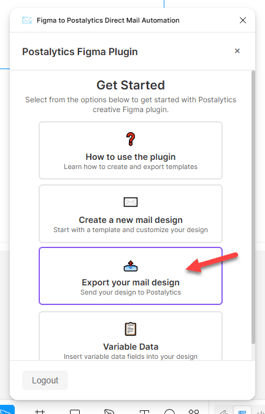
- Click “Export your mail design”.
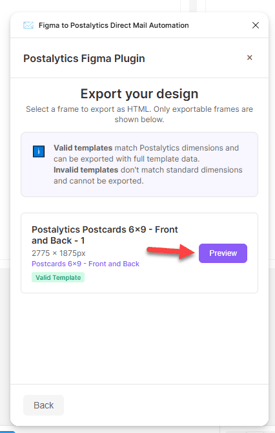
- Select the Front Frame and Back Frame you wish to export, if not already selected, and then click “Preview”.
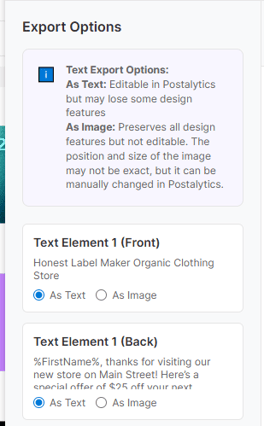
- Design elements and fonts not supported within the Postalytics application can be exported as images rather than text using the options to the left of the preview. It’s important to note that any text with a variable should not be exported as an image.
Once the template creation in Postalytics is complete you will see a confirmation message. Click “OK”.
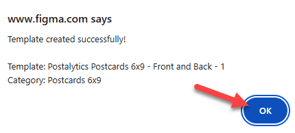
The final confirmation window contains a link to the template that has been created and synced to Postalytics. Clicking this link will take you directly to the template in the Postalytics Editor.
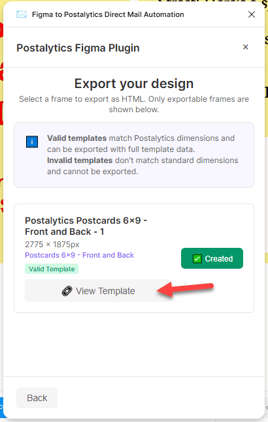
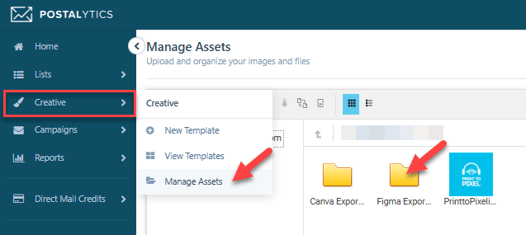
- The plugin automatically renders the design at the required 300 DPI, optimizes the color profile, and uploads directly into your Postalytics Template Library as well as uploads each element in the Postalytics Asset Manager.
Final Review & Proofing
The Postalytics Application is where you’ll finalize the creative:
- Navigate to Creative > View Templates. Your Figma design will be waiting there as a new, ready-to-use template.
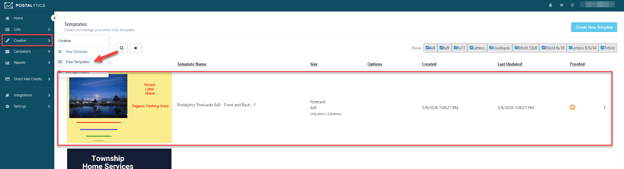
- Open the template to enter the Editor to review and edit the template as needed:
- Rename and save the template.
- Move text or elements that may not be exactly as they were in Figma.
- Add any additional variables, QR code, pURL, etc.
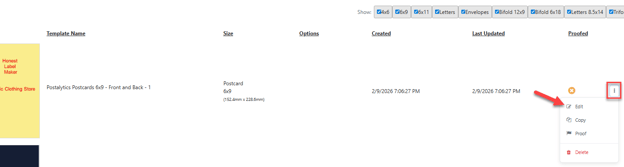
Learn more about the Editor.
The Proofing Process
- Once the design has been reviewed and edited as desired, click the red “Proof Template” box in the upper right.
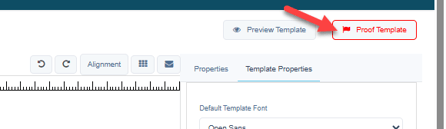
- Follow the prompts in the proof wizard to select the data source for sampling, create a sample return address and sample pURL (these are for placeholder purposes at this point in the process), then continue on through each of the proofing steps, checking all variables, including pURLs.
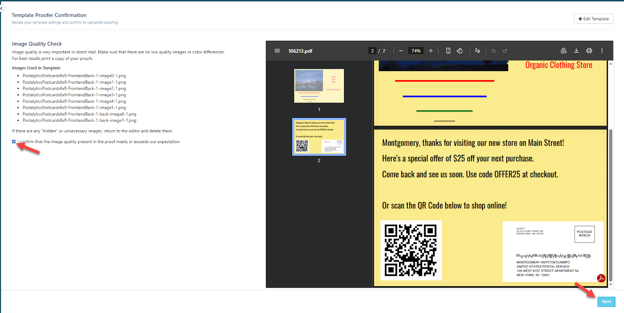
Learn everything you need to know about the Proofer.
Template is Ready to Use
Once the design is proofed, the template will show a green arrow within the library and it is officially ready to be used in a Smart Send or Triggered Drip campaign.
Need Help?
If you have questions about using the Plugin, exporting the design or editing and proofing within the Postalytics application, we are here to help. Visit the Postalytics Support Center or Contact Our Support Team.