
Two Factor Authentication, or 2FA, is a security method that requires two forms of identification (factors) to access resources, data, or online platforms. The first factor is usually a password or PIN, and the second factor is something the user has or knows, such as a code sent to a phone or an email, or a biometric scan.
Why Set Up 2FA?2FA adds an extra layer of security to user accounts and gives marketers the ability to monitor and safeguard data and information.
Even with a strong password, there’s still a chance it can be exposed. But with 2FA set up, even if someone knows your password, they can’t access your account without also having access to the 2FA method that was set up.
How Postalytics 2FA WorksSet up 2FA for your Postalytics account in a few simple steps:
-
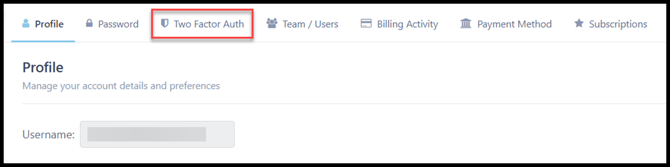
From within the Profile settings, select the Two Factor Authentication on the left side
-
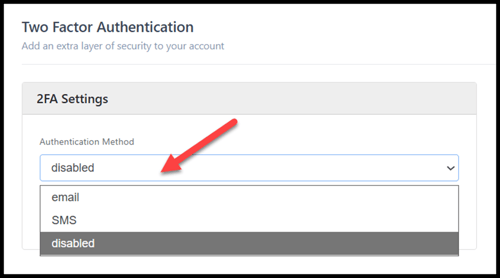
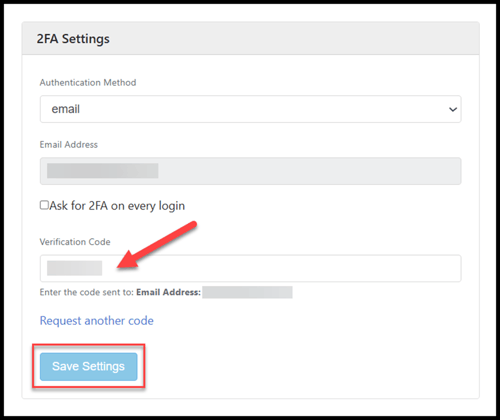
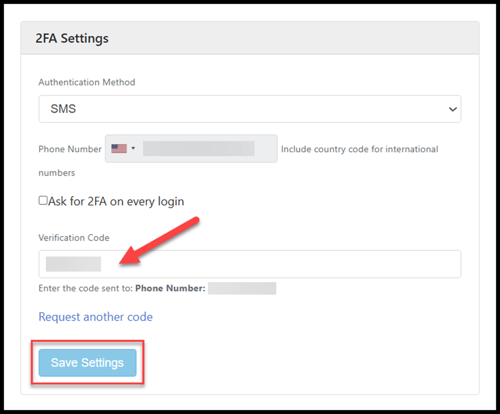
Select the method: Email or SMS
-
No matter the method you choose to use, enter the requested information, and use the checkbox to set up the system to ask for 2FA on each login*, then click "Save."
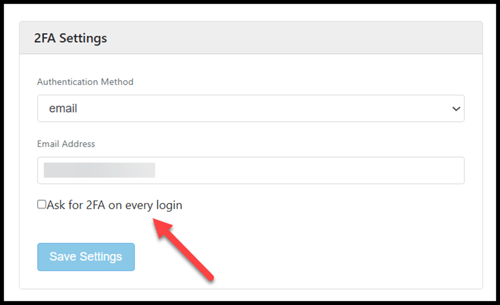
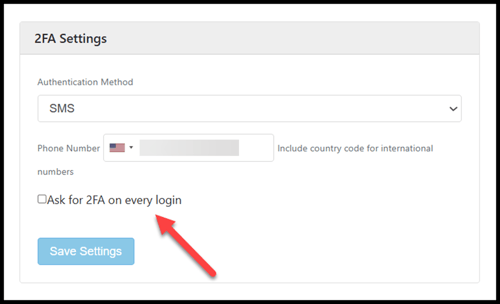
* If you do not check the box, the system will only require the 2FA login every 14 days, if logging in on the same computer.
If at any time you’re logging in on a different computer, you’ll be prompted to authenticate with your chosen method.
-
Enter the code that is sent via Email or SMS.
-
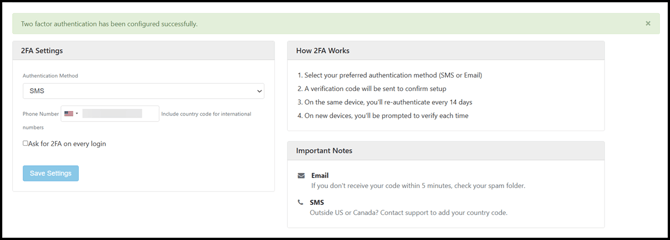
Click "Save" again, and you’re all set!
By setting up the 2FA requirement on every login, you’ll be prompted to enter the code sent to your email or phone before clicking the Login button.
The code will expire within a few minutes, and if that happens you’ll need to request a new code by selecting “Request another code”.
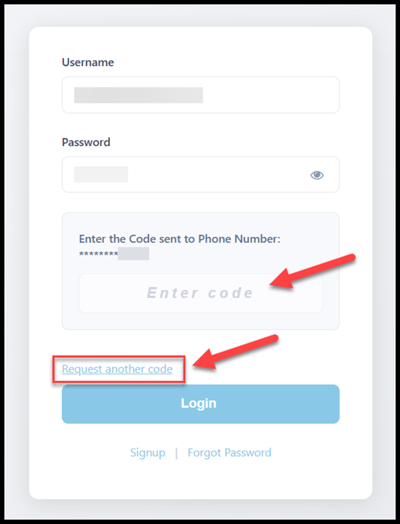
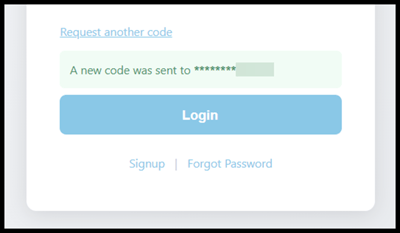
Enter the code and log in.
Important Notes For EmailYour confirmation email with a code should be received within 5 minutes. Please be sure to check your spam folder if you have not received it within that time frame.
For SMSIf you are outside of the US or Canada, contact us and we’ll add support for your country code.
Disable 2FAYou have the option to disable 2FA at any time.
Simply choose "disabled" from the dropdown list and click "Save."
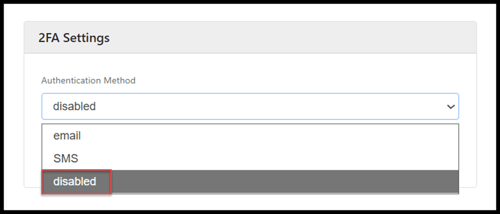
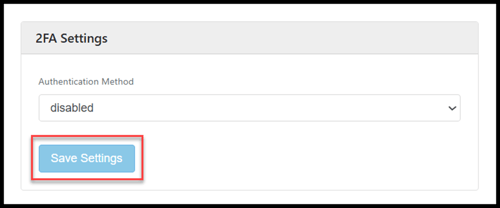
Your choice to disable will be saved and you will no longer need 2FA to log into your Postalytics account.